

You can configure accessibility features for your cards inbox within MoEngage to ensure inclusivity for all users. For a comprehensive understanding of the accessibility feature, refer here.Documentation Index
Fetch the complete documentation index at: https://moengage-crashes-in-debug-feedback.mintlify.app/llms.txt
Use this file to discover all available pages before exploring further.
Set Up Accessibility for Cards
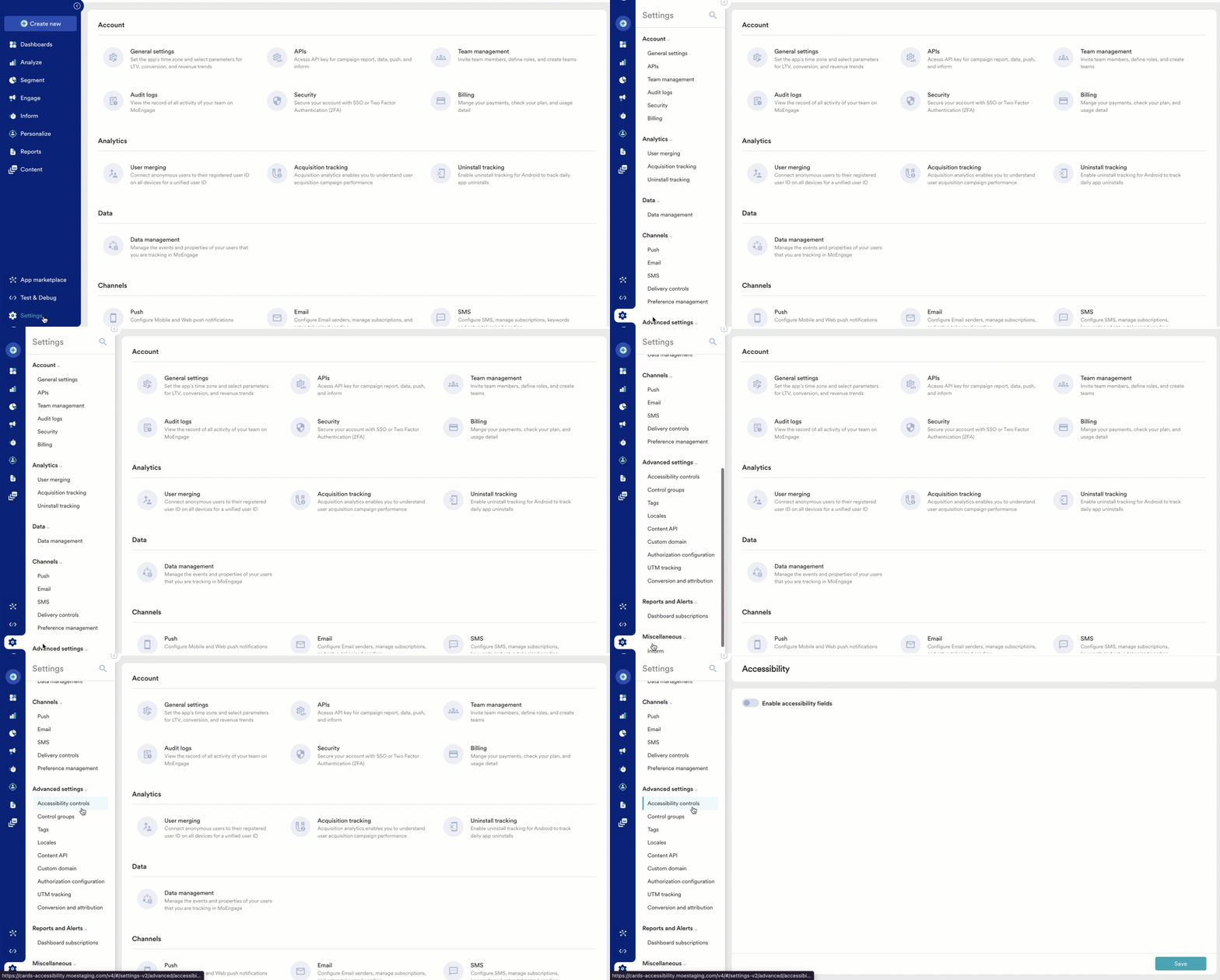
Perform the below-mentioned step-by-step instructions to configure accessibility for the cards inbox.- On the left navigation menu in the MoEngage dashboard, click Settings, and then click Advanced Settings > Accessibility Controls.
- On the Accessibility page, turn on the Enable accessibility fields toggle. The Accessibility fields for Cards inbox section appear.
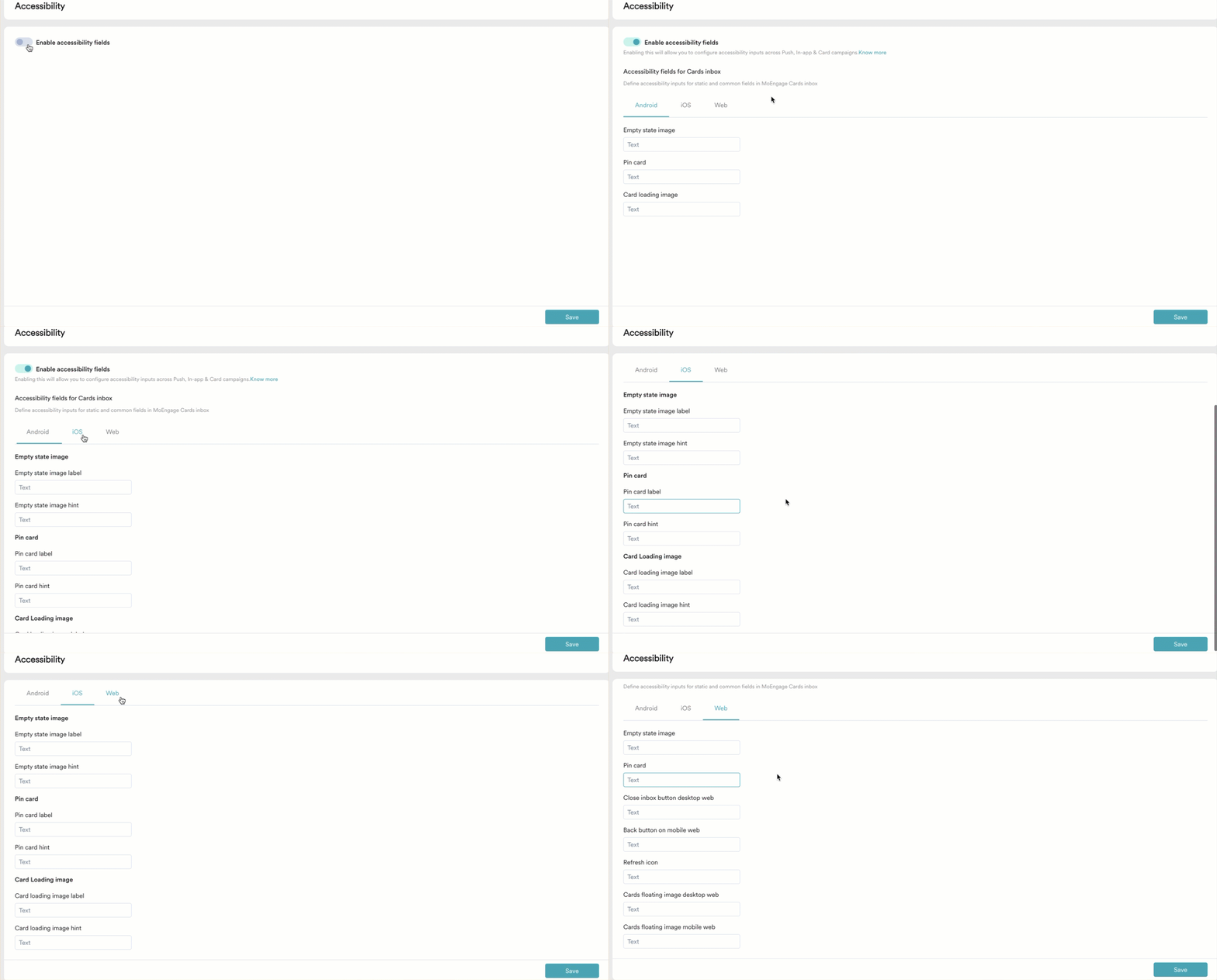
- Define the below-mentioned field values:
| Platform | Field | Description |
|---|---|---|
| Android | Empty state image | Enter a concise, descriptive text that conveys the purpose of the empty state image. For example, ’No new messages. Your inbox is empty.’ |
| Pin card | Enter a brief, descriptive text that identifies the action of pinning a card in the inbox. | |
| Card loading image | Enter a concise, descriptive text that informs users that a card is loading in the inbox. | |
| iOS | Empty state image label | Enter a brief, descriptive label that help users identify the purpose of the empty state image. |
| Empty state image hint | Enter additional context or guidance that explains the empty state image’s action or expected user interaction. | |
| Pin card label | Enter a brief, descriptive label that identifies the purpose of the pin card option. | |
| Pin card hint | Enter additional context or guidance that explains the action of pinning a card or what users can expect after tapping the button. | |
| Card loading image label | Enter a brief, descriptive label that identifies the purpose of the card loading image. | |
| Card loading image hint | Enter additional context or guidance that explains the card loading image’s action or expected behavior. For example, ‘Please wait while we fetch the details.’ | |
| Web | Empty state image | Enter a concise, descriptive text that conveys the purpose of the empty state image in the inbox. |
| Pin card | Enter a brief, descriptive text that identifies the action of pinning a card in the inbox. | |
| Close inbox button desktop web | Enter a concise, descriptive text that conveys the purpose of the close inbox button on desktop. | |
| Back button on mobile web | Enter a concise, descriptive text that conveys the action of returning to the previous screen on mobile web. For example, ’Go back to the previous page.’ | |
| Refresh icon | Enter a brief, descriptive text that identifies the action of reloading or refreshing the inbox content. | |
| Cards floating image desktop web | Enter a concise, descriptive text that conveys the purpose of the floating image alongside cards on desktop. | |
| Cards floating image mobile web | Enter a concise, descriptive text that conveys the purpose of the floating image alongside cards on mobile. |
- Click Save. The configuration for the Cards inbox accessibility is completed.