

This article explains Web Push Notifications Integration validation manually in a stepwise manner.Documentation Index
Fetch the complete documentation index at: https://moengage-crashes-in-debug-feedback.mintlify.app/llms.txt
Use this file to discover all available pages before exploring further.
What is to be Validated?
To make sure Push notifications are working properly.Validation Procedure
- Push Token Generation
- On your profile page, the Web push icon has to be green.
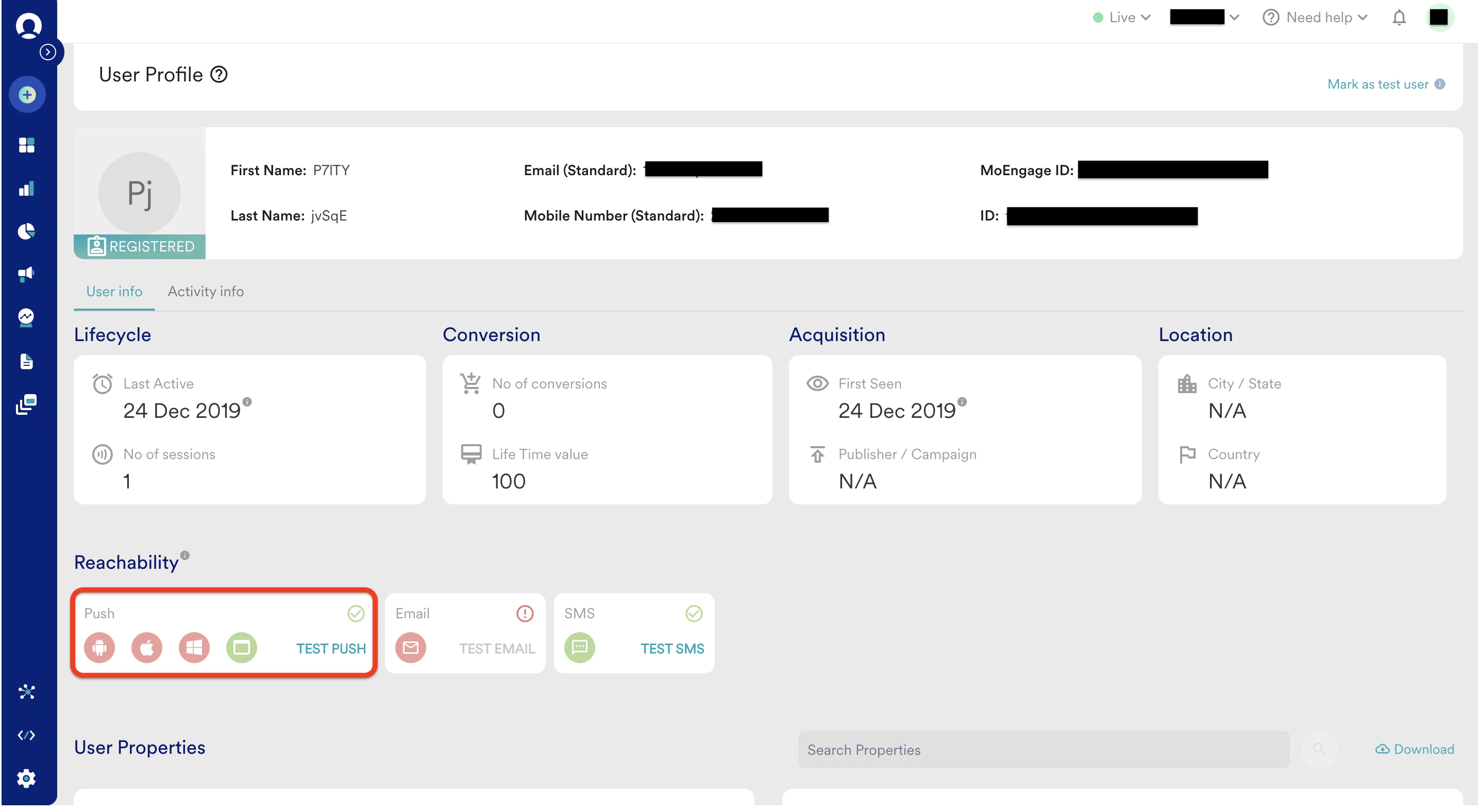
- You can also check this by installing the MoEngage extension on your browser. Link
.png?fit=max&auto=format&n=T74hPBivJHlJn2hw&q=85&s=83b536bf6529f43065f254b606cc498c)
- Push notification received on the device
- Create a general Push campaign on the Dashboard for your device
- Test the notification from the test option at the 3rd stage of creation.
- If you get a successful response, create a campaign. In the case of failure, check for the failure reasons.
.png?fit=max&auto=format&n=T74hPBivJHlJn2hw&q=85&s=986874fc3b7f371eca4eb389f5de4217)
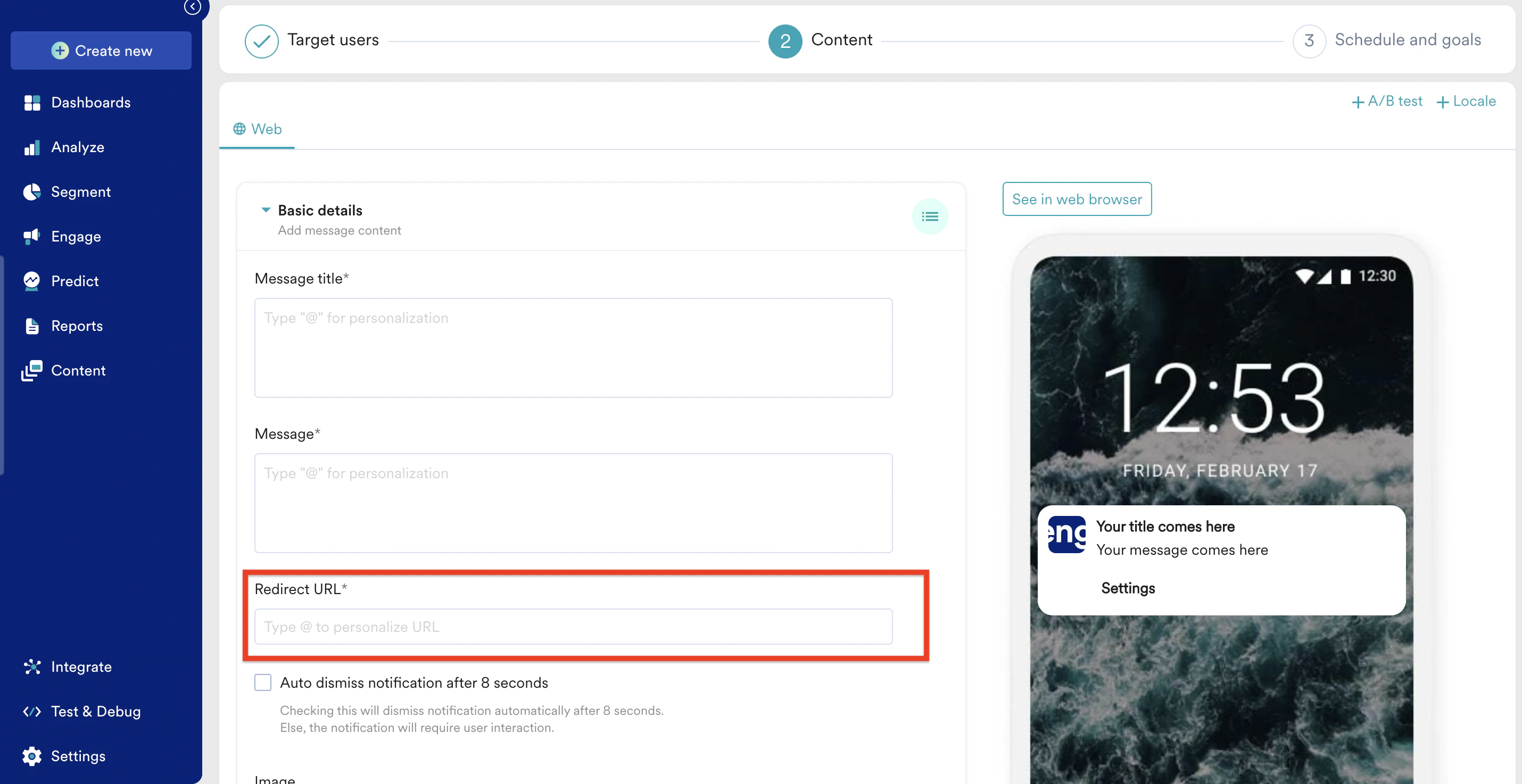
- Notification Redirection
- Provide the redirection URL while creating the campaign. And once the message is received click on it and check if it is redirecting you to the URL
- Notification stats
- Once the campaign is sent out, the campaign stats should show the impressions and clicks.
.png?fit=max&auto=format&n=T74hPBivJHlJn2hw&q=85&s=cc9ad87084e465d607b0b9ec2edce4f2)
Success Criteria
- Push token has to be generated for the users
- Notification should be displayed correctly
- The redirection should work as expected
- The Impressions and clicks have to be captured.
Potential issues and Solutions
- If tokens are not generated correctly, the reachable user base will be less than the actual users. To fix issues related to tokens, please check the Web SDK docs.
- Incorrect Redirection will lead to confusion/miss in opportunities.
- If the clicks and impressions are not recorded, we cannot understand the impact of the campaign. To fix impressions and click tracking issues, please check the Web SDK docs.