

Documentation Index
Fetch the complete documentation index at: https://moengage-crashes-in-debug-feedback.mintlify.app/llms.txt
Use this file to discover all available pages before exploring further.
Overview
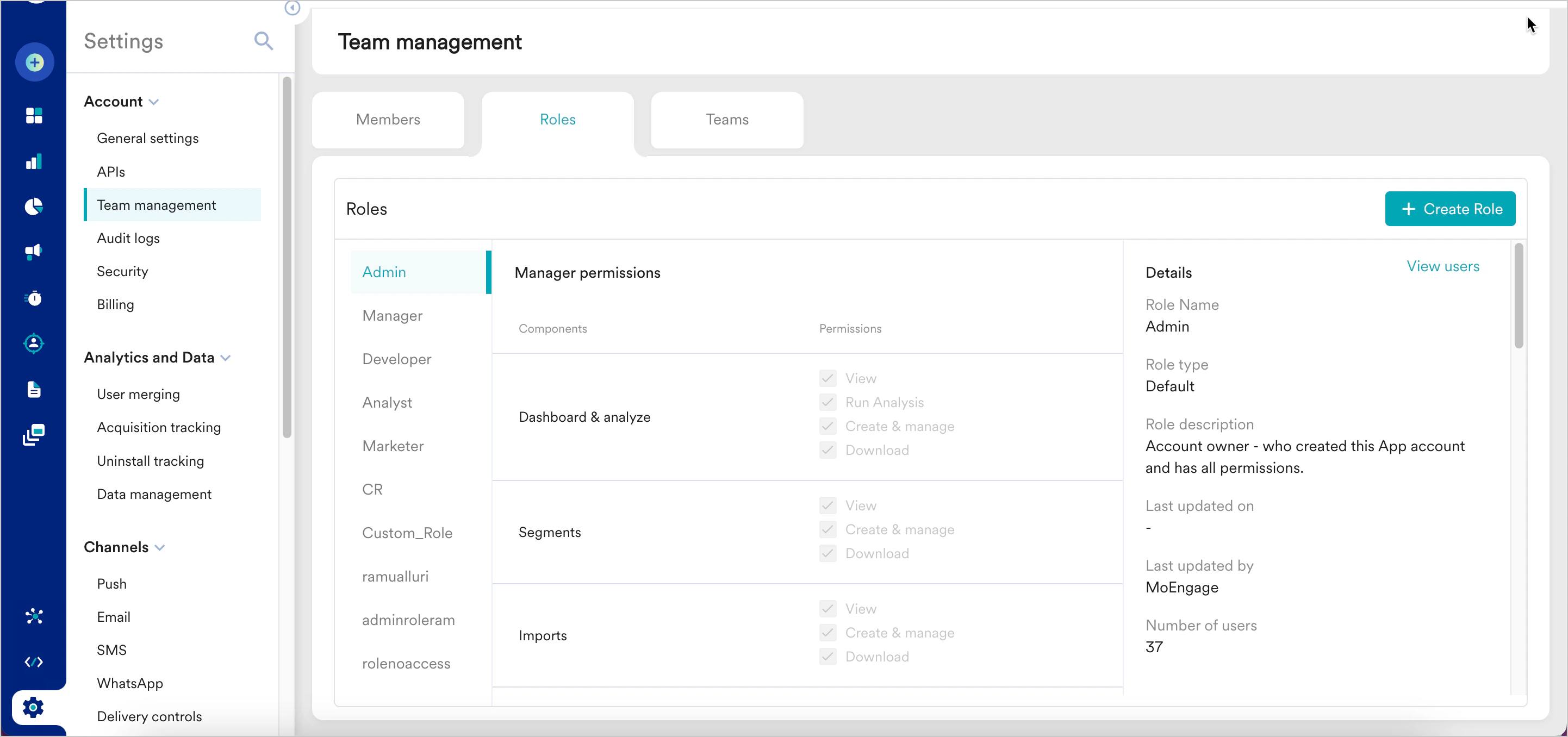
MoEngage offers role-based access control for account admins to enable different levels of access permissions (to dashboard components) for your team members. You can view the access roles by navigating to Settings > Account > Team management > Roles.Types of Access Roles
We provide the following two types of access roles:Default Roles
These are the default roles with fixed permissions and are available for every account. These roles cannot be edited. MoEngage provides the following default roles:Admin
The person who creates the workspace is assigned the Admin role by default. The role has all permissions for the account- Creating campaigns
- Changing account settings
- Inviting team members
Manager
The person who will run marketing campaigns for live users, and manage the account and all settings. This member has all permissions on the dashboard similar to Admin, barring the permission to Create/Edit/Delete Teams. There can be multiple managers in one account. Managers can invite team members to roles of Manager and below.Marketer
The person who will create the campaigns for live users has access to segmentation but cannot access billing info. With Campaign approval flow, a marketer’s campaigns will go live ONLY upon approval from the Manage or Admin. For more information, refer to Campaign Approval Flow.Developer
The person who will integrate your app/web with MoEngage. This member can access/test all features in the TEST environment but has restricted access in the LIVE environment. The access details are as follows:- Can not view Billing details and can only add Developers to the account
- Can not view campaigns created by Admin/Manager team members
- Can not change Push FC and DND settings
Analyst
The person who has access to view/export campaign data, user segmentation data, and set up daily reports. This member can not create any campaigns or change any settings (except for setting up Reports). To summarise, the following are the default roles and their access permissions.Custom roles
These allow you to create new roles with your desired permission sets. You can also clone existing roles and assign permission sets as desired. Only admins have access to create/update roles.
Steps to create a new role
- Navigate to Settings > Account > Team management > Roles.
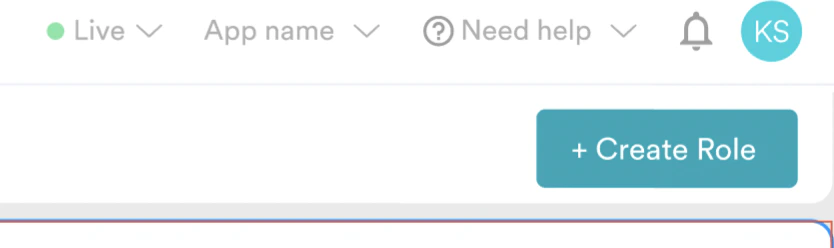
- Click Create role on the top right of the header.
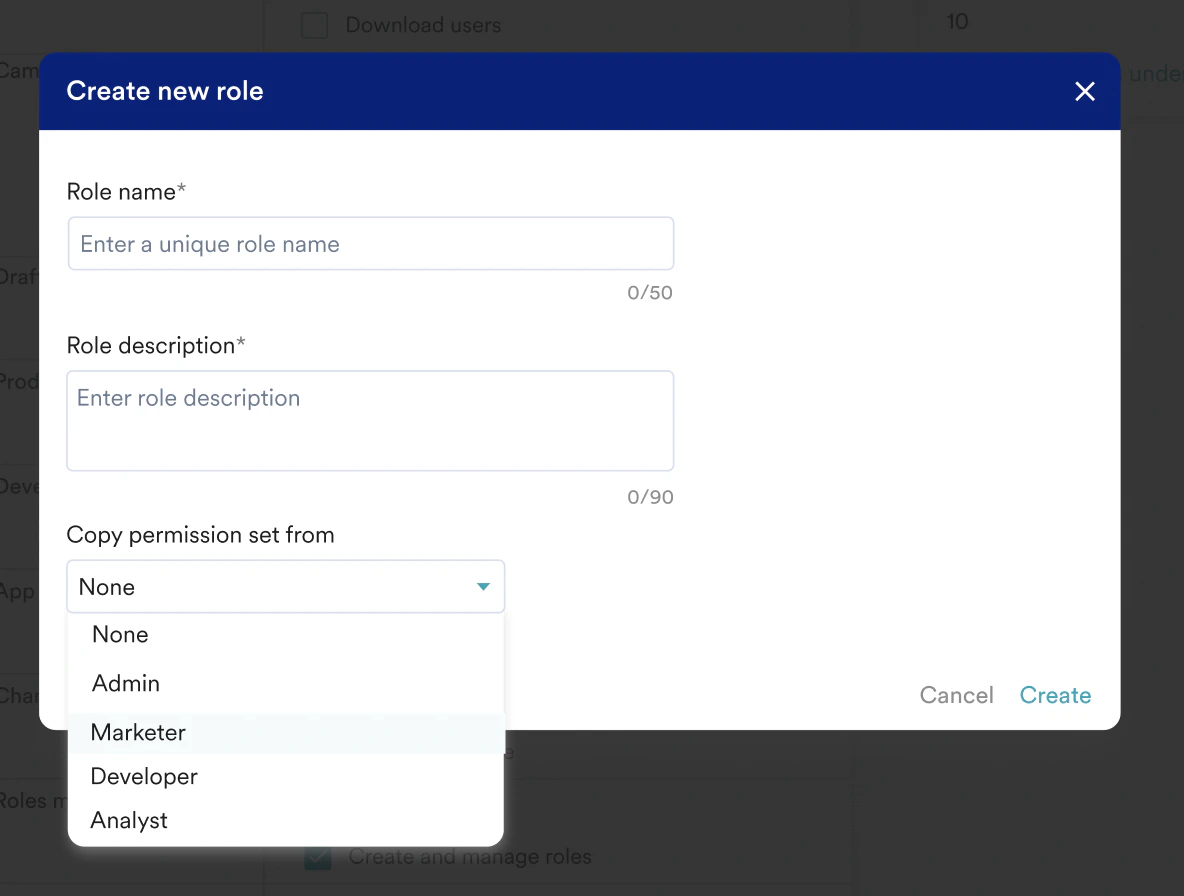
- Provide a role name and description. You can choose to copy permission sets from an existing role or create one from scratch.
- Click Create.
- You can now check/uncheck permissions as per your requirement. The changes will be autosaved.
Permissions
| Components | Permissions & Description |
|---|---|
| Recommendations & Catalog | View: Can view list of published recommendations, and catalog items and feeds. Create and manage: Can edit, archive or publish new recommendations, catalogs, or add/delete catalog feeds Download: Can download catalog feeds or item processing failure report |
| Dashboard & Analyze | View: Can view custom dashboards, analyze sections Run query: Can run analyze queries and view results Create and manage: Can create new charts and dashboards and edit/delete existing ones Download: Can download charts and CSV data |
| All Segments, RFM Segments, Warehouse Segments, Seg AI, Sync Segments | View: Can view users & created segments Create and manage: Can run segment queries, create new segments, and edit/delete existing ones Download: Can download users and CSV data from user profile |
| Campaigns, Inform, Flows & Personalize | View: Can view all campaigns and campaign info pages Create and manage: Can create new campaigns, and edit/update existing campaigns; but cannot publish the campaign. If you are using campaign approval flow - the user with the permission can only send the campaign for approval. Create, manage, and publish: Can create new campaigns, edit/update existing campaigns, and also publish the campaign. If you are using campaign approval flow - the user with the permission can approve/reject the campaign. Edit templates: Can edit templates Download: Can export campaigns |
| Drafts | View: Can view drafts Create and manage: Can create and update drafts |
| Reports | View: Can view all reports Create and manage: Can create new reports, update/delete existing reports Download: Can download the reports |
| App configuration | View: Can view general, API, Analytics, and Control group settings. Data Management: Can view the data management dashboard and download reports. Identity Resolution: Can view the identity resolution dashboard. Tag Management: Can view tags. Setup and manage: Can configure and update App settings. Data Management: Can perform actions on the data management dashboard (for example, block/hide events). Identity Resolution: Can perform actions on the identity resolution dashboard (for example, add identifiers, change merge settings, pause identifiers). Tag Management: Can create/edit tags. |
| App Marketplace | View: Can view the available integrations Create and manage: Can create & edit the integrations. |
| Channel configuration | View: Can view channel settings. PII Masking & Encryption: Can view masked attributes. Setup and manage: Can configure and update channel settings. PII Masking & Encryption: Can mask attributes. Create and manage all roles: Can invite new members, change the role of existing members and revoke access of members irrespective of their roles, enable/disable “Campaign Approval Flow”, and download dashboard users |
| Teams (know more) | View: Can view all teams and their members Setup and manage: Can create new teams, edit/update existing teams |
| Usage and Billing | View: Can view and enter subscription information, view organisation information, and view billing card information Create and manage: Can view and enter subscription information, edit organisation info, edit billing card information, and view & export audit logs Download: Can download charts and CSV data for workspace’s usage |
| Alert Manager - Out of the Box Alerts (OOTB Alerts) and Custom Alerts | View: Can view alerts Edit: Can edit alerts Subscribe: Can subscribe to alerts Subscribe Others: Can subscribe others to receive alerts Unsubscribe: Can unsubscribe from receiving alerts that they are subscribed to Delete: Can delete alerts Create: Can create a custom alert. OOTB alerts cannot be created. Duplicate: Can duplicate a custom alert. OOTB alerts cannot be duplicated. |
| Landing Pages | View: Can view all landing pages and landing page info pages Create and manage: Can create new landing pages, edit/update existing landing pages |
| Imports | View: Can view the created data imports Create and manage: Can create & manage new data imports Download: Can download users from the created data imports |
| Coupons | View: Can view the listed Coupon List in Coupon List listing page and the added files and metadata of coupon files added in a Coupon List Create and manage: Can set up a new Coupon List within the MoEngage platform, modify or update a Coupon List details, archive/unarchive a Coupon List name, add new coupon files to top-up the Coupon List, and delete a coupon files from a Coupon List Publish: Can select the coupon list in a campaign such that the campaigns are sent with coupons as per functionality Download: Can download the coupon list usage report for audit |
| Content | View: Can view templates Create and manage: Can create templates and save as draft Create, manage, and publish: Can publish templates Delete: Can delete templates |
| Offerings & Decision Policy | View: Can view created offerings and decision policies Create and manage: Can view new offerings & decision policies and edit/update existing policies/decision policies Create, manage and publish: Can create new offerings & decision policies, edit/update existing offerings & decision policies, and publish them Download: Can export reports for offerings & decision policies |