

If you get a Google Authentication Error or Mismatch Sender Id Error while sending the campaign, your server key is probably not authenticated/valid to send the push notification to your registered users. This error occurs because of the following reasons:Documentation Index
Fetch the complete documentation index at: https://moengage-crashes-in-debug-feedback.mintlify.app/llms.txt
Use this file to discover all available pages before exploring further.
- Google has deprecated GCM, and apps need to migrate to FCM. Read more about the change & Google’s recommendations here.
- You have migrated your Google project to Firebase and are using the Legacy key in the MoEngage Dashboard.
- Login to the Firebase Console.
- Select the project name that you are using to send push notifications.
- Click on Project settings, there is a settings icon, right to the overview. You will find it there.
- Under Project Settings, select Cloud Messaging. You will see 2 keys mentioned in there.
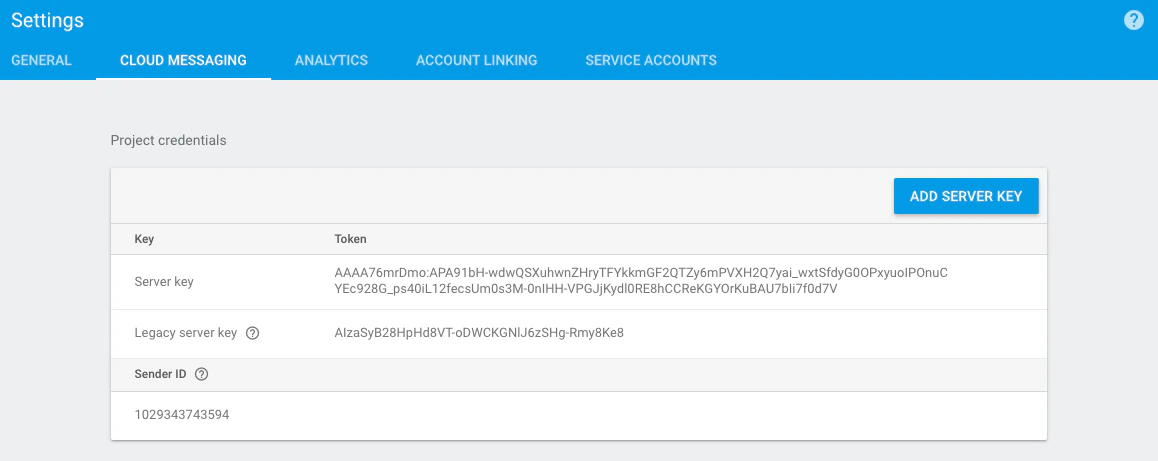
- The legacy server key is what you might be using on the MoEngage Dashboard, and you are not able to send notifications.
- Pick up the Server key (which is the longer one), and update it under the Server key in MoEngage Dashboard in Settings -> Channels -> Push Settings-> Mobile Push.
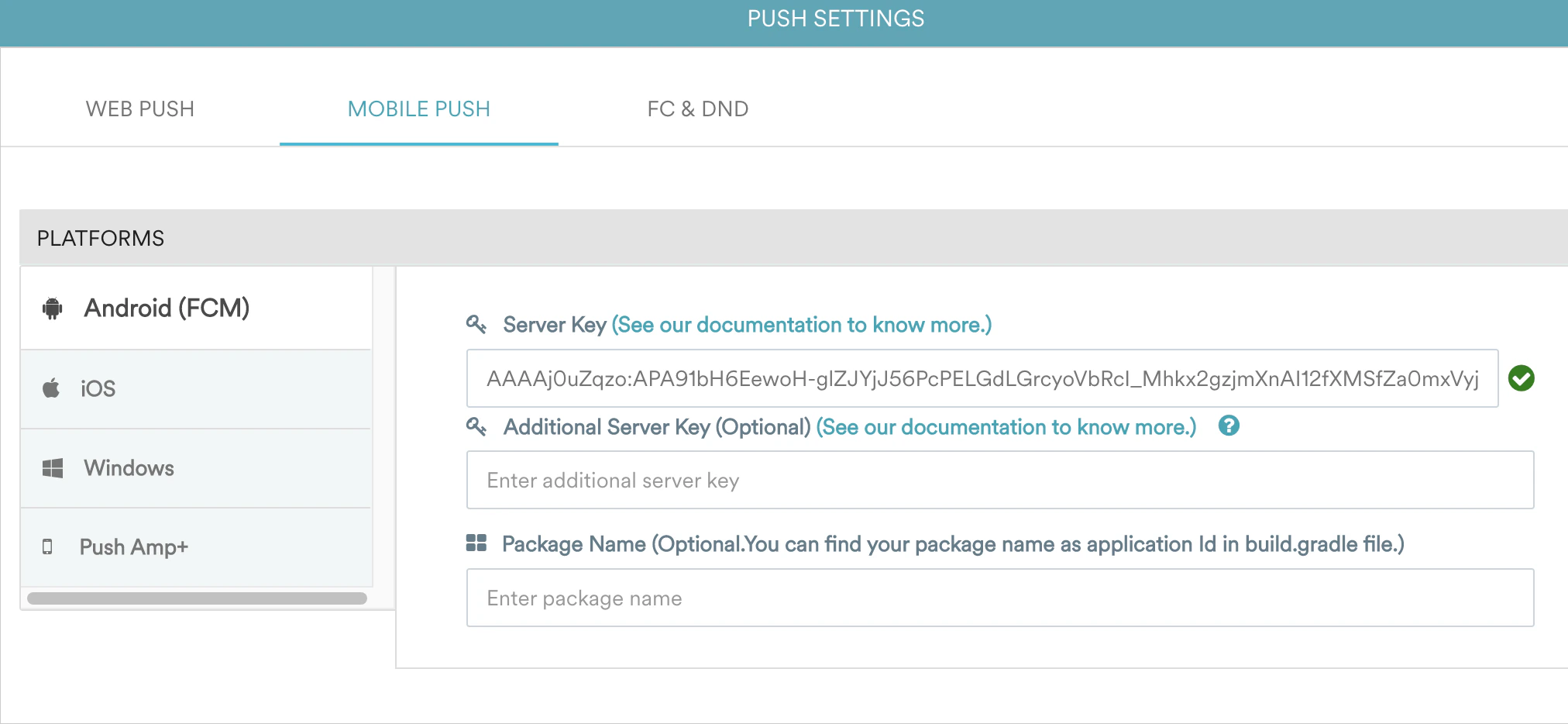
- Once you update the Server key, create a campaign on the dashboard and check if you receive push notifications on your mobile app.